
macOS setup
Install MantaRay for macOS
Download the DMG, open it, and move MantaRay to Applications. If macOS blocks first launch, allow it in Privacy & Security using Apple’s official Gatekeeper flow.
Direct DMG download
MantaRay-macos.dmg
https://storage.yandexcloud.net/ocean/MantaTech/macos/MantaRay-macos.dmgBefore install
First check allowed app sources
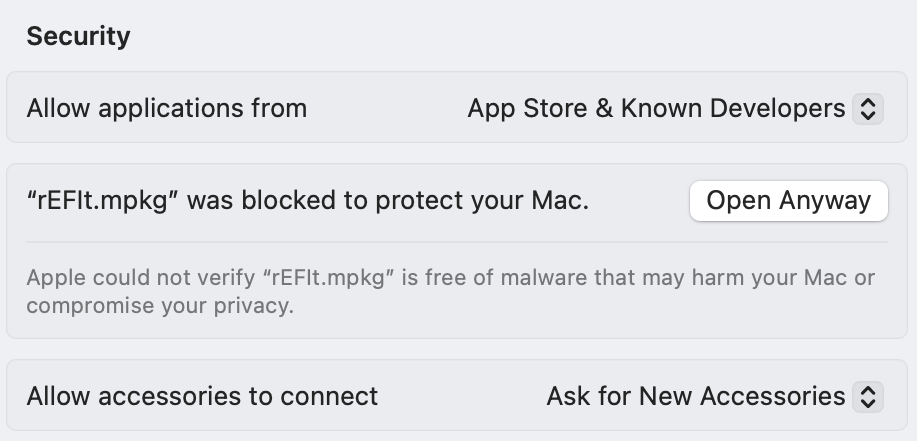
In System Settings > Privacy & Security > Security, set “Allow apps downloaded from” to “App Store and identified developers”. This is the normal macOS setting for apps downloaded from the internet.
- 1System Settings → Privacy & Security
- 2Security → Allow apps downloaded from
- 3App Store and identified developers
Installation steps
- 1
Download the DMG
Click the download button and save MantaRay-macos.dmg to your Downloads folder.
- 2
Open the DMG
Double-click the downloaded DMG file. A Finder window with MantaRay will open.
- 3
Move MantaRay to Applications
Drag MantaRay into the Applications folder, then eject the DMG.
- 4
Open MantaRay
Launch MantaRay from Applications. macOS may ask you to confirm that the app was downloaded from the internet.
Gatekeeper
If macOS blocks the app
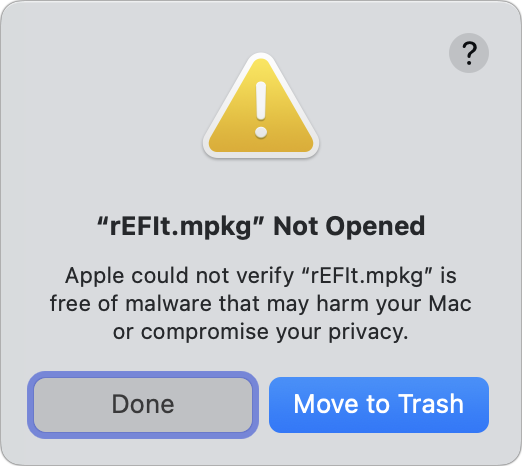
On current macOS versions, Apple recommends allowing blocked apps from System Settings after you try to open the app once.
Open Anyway
If you do not see Open Anyway, try opening MantaRay from Applications first, close the warning, then return to Privacy & Security. Apple keeps this button visible for about one hour.
- 1
Try to open MantaRay once
If macOS shows a warning, close it. This creates the temporary Privacy & Security option.
- 2
Open System Settings
Choose Apple menu > System Settings, then open Privacy & Security in the sidebar.
- 3
Scroll to Security
Find the message about MantaRay being blocked and click Open Anyway.
- 4
Confirm Open
Enter your Mac password or use Touch ID, then click Open. macOS saves MantaRay as an exception.
Important
MantaRay is a VPN client. You still need your own server configuration or a subscription from a provider you trust.